Streaming Architecture: How to Feed Every Zone Without Lag
Most homeowners who run into problems with whole-house streaming have made the same mistake: they treated it as a content problem instead of a network and distribution problem. They upgraded their streaming service, added an Apple TV here and a Fire Stick there, and wondered why the kitchen TV still buffers when someone is gaming upstairs. The content was never the issue. The pipe delivering it was.
A well-designed whole house streaming setup is an infrastructure project first and a media project second. That means thinking about your network backbone, your distribution method, your zone control hardware, and your source management before you pick a single streaming device. The homeowners who get this right once never have to rebuild it. The ones who improvise room by room spend years fighting problems that have no clean fix.
Why Most Whole-House Streaming Setups Underperform
The gap between what streaming requires today and what most home networks can actually deliver has never been larger. A single 4K HDR stream in Dolby Vision uses roughly 25 Mbps of sustained bandwidth. Add Dolby Atmos audio overhead, which runs separately on some platforms, and you’re closer to 30 Mbps per room. A five-room house with simultaneous 4K playback needs 150 Mbps of usable internal throughput minimum, and that’s before accounting for gaming, video calls, smart home devices, or anything else on the network.
That’s a bandwidth demand your internet connection might handle, but the question is what happens between your router and each display. Most homes have a mix of 2.4 GHz Wi-Fi, some 5 GHz access points, and Ethernet wired to one or two rooms. That infrastructure was never designed for this. The result is buffering that appears random (because it’s tied to Wi-Fi contention that no one can see) and latency on live content that makes sports events genuinely unwatchable.
Wireless extenders and mesh systems address part of this, but they introduce their own latency and bandwidth overhead. A TP-Link Deco or Eero Pro mesh system can serve casual streaming well, but in a home where you want deterministic, lag-free playback across every zone, especially when combined with gaming or video conferencing, wireless distribution has ceiling you’ll eventually hit.
The right architecture depends on what you’re distributing (streaming sources only, or also local media and physical sources like Blu-ray), how many zones you’re feeding, and whether those zones need independent control or can share a common source. Those three variables drive everything else.
The Network Foundation: What Has to Be There First
Before any streaming hardware gets purchased, the network has to be built to spec. Every professional integrator working on a whole house streaming setup will tell you the same thing: a network that’s fine for browsing and email is not fine for media distribution, and retrofitting after the fact costs twice as much.
For a home with five or more zones, the target infrastructure looks like this: a gigabit-capable router (Ubiquiti UniFi Dream Machine Pro at around $350 to $500, or the pfSense-based Netgate SG-1100 at $189 for smaller homes) feeding a managed switch at the equipment rack. From there, dedicated Ethernet home runs to each media location. Not shared drops, not daisy-chained. Individual home runs from the equipment rack to each room.
Cat 6 is the minimum for new installations. Cat 6A, which supports 10 Gbps over 100 meters, is worth specifying if walls are open during construction or renovation, since the cost difference is minimal and future-proofing is substantial. The cable itself might run $0.40 to $0.70 per foot for Cat 6A versus $0.25 to $0.40 for Cat 6; over a 1,500-square-foot run through a whole house, the upgrade is rarely more than $300 to $500 in materials.
Wi-Fi should be planned as a supplement, not the primary transport for high-demand zones. If a display location absolutely cannot receive a wired drop, Wi-Fi 6 (802.11ax) access points positioned correctly can carry 4K streams reliably. Ubiquiti’s U6-Lite ($99) or the U6-Pro ($199) give you the density and channel management that consumer-grade routers can’t match. The key difference is per-client bandwidth reservation and airtime fairness, which prevents one device from starving others on the same channel.
VLAN segmentation is worth adding for homes that mix streaming with smart home devices. IoT devices (thermostats, doorbells, smart speakers) generate network traffic that competes with media streams and also represent a security surface. Isolating them on a separate VLAN with defined bandwidth limits keeps them from degrading media performance and contains any compromise. This is standard practice in any installation done by a professional integrator and increasingly accessible to technically capable homeowners through UniFi’s interface.
Source Distribution: Centralized vs Distributed vs Hybrid
Once the network foundation is in place, the core question becomes where your streaming sources live and how signal gets to each zone. There are three main approaches, each with different cost profiles, complexity levels, and performance characteristics.
Centralized distribution puts all sources in one equipment rack, typically in a mechanical room, closet, or AV rack enclosure, and distributes the signal to every room from there. A four-input HDMI matrix switcher handles source routing. Kramer’s VS-44H2 ($1,100 to $1,400) or Atlona’s AT-UHD-PRO3-44M ($1,200 to $1,500) are common choices in professional residential installations. These allow any source (Apple TV, Nvidia Shield, cable box, Blu-ray player) to be routed to any display. A single Apple TV 4K ($129) sitting in the rack can serve four rooms simultaneously without any lag or image degradation, because you’re distributing the HDMI signal rather than streaming the content four separate times.
The limitation: each zone can only watch the same source at the same time, unless you have multiple sources and a matrix large enough to route them independently. A four-by-four matrix with two Apple TVs, an Nvidia Shield Pro ($199), and a cable box gives you flexibility to run different content in different rooms, but you’re limited by the number of inputs and outputs.
HDMI over IP has made centralized distribution significantly more flexible in the last five years. Instead of running HDMI cables directly between rack and display (expensive and distance-limited), you encode the HDMI signal to IP at the rack and decode it at each room with a small receiver unit. Wyrestorm’s NHD-600-TX encoder ($299 per unit) and NHD-600-RX decoder ($229 per unit) handle 4K HDR over standard Cat 6, with sub-100ms latency that’s invisible during normal viewing. A setup serving eight rooms needs eight encoders (one per source) and eight decoders (one per room), plus the network switch to move the signal. Total hardware cost for an eight-room HDMI-over-IP setup runs $3,500 to $6,000 depending on brand and feature set, but you get full any-source-to-any-room flexibility.
Distributed streaming puts a dedicated streaming device at each display location. An Apple TV at every TV, a Roku Streambar Pro at every zone. This is how most homes end up configured by default, and it works reasonably well if the network is solid. The downsides are real: you’re managing firmware updates across ten or fifteen devices, app logins must be configured on each one separately, and the total hardware cost adds up quickly (ten Apple TV 4Ks at $129 each is $1,290 in streaming sticks alone).
For homes already committed to this approach, the right answer is a managed network (so devices actually get bandwidth when they need it) and a control layer that unifies them. Crestron’s DM NVX platform can manage distributed streaming endpoints from a central interface, and Control4 integrates with Apple TV, Roku, and Fire TV through dedicated drivers that let a single touch on a Control4 interface control playback across every room without picking up a device remote.
Hybrid architecture is what most professional integrators actually recommend and build. Centralized distribution handles high-performance zones: the main living room, the primary theater or media room, the master bedroom. These get dedicated hardware sources from the rack, routed via HDMI matrix or HDMI-over-IP. Secondary zones (kids’ rooms, guest room, gym) get dedicated streaming devices but share a managed network with the centralized zones. The result is performance where it matters most and cost control everywhere else.
For homes also interested in distributed video across every screen in the house, the HDMI-over-IP approach integrates cleanly with structured video distribution and is worth specifying together rather than treating as separate projects.
Zone Control: How Rooms Are Actually Managed
A whole house streaming setup without coherent zone control becomes a management nightmare. Which Apple TV belongs to which room? Who can access which sources? What happens when two zones want the same source simultaneously?
Zone control systems range from app-based management (Sonos-style, where each zone is an independent entity managed through a mobile app) to fully integrated control where a single automation platform manages every zone, source, and display from one interface.
For audio-only zones, Sonos remains the most practical choice for homes not doing a full custom integration. The Sonos Amp ($699) powers passive in-ceiling speakers and handles zone management, source selection, and volume through the Sonos app or through Alexa and Google Assistant. A three-zone Sonos setup with Sonos Amp units and a common streaming service subscription gives reliable whole-house audio without requiring an integrator, though the ceiling on capability is lower than a custom system. The Sonos vs custom-installed audio comparison covers where that ceiling actually sits and when it starts to matter.
For video zones, the control layer is more complex because sources vary (streaming, cable, gaming consoles), display control involves power state, input selection, and image settings, and different rooms have different use cases. Control4 (EA-1 controller starting around $600, plus dealer installation) handles this well by creating a unified logical model of every zone, every source, and every display. You tap “watch Apple TV” on a Control4 remote or touchscreen in the bedroom, and the system powers the display, selects the correct HDMI input, routes audio to the room speakers, and loads the Apple TV interface. Every room works the same way regardless of what’s connected behind it.
Crestron and Savant offer comparable zone control capability at higher price points and with higher integration depth. Crestron’s DM NVX system handles both the distribution infrastructure and the zone control layer in a single cohesive platform, which is why it dominates high-end residential and commercial installations. A Crestron-based whole house streaming setup for a 5,000-square-foot home with twelve zones can run $40,000 to $80,000 in hardware and programming, but the operational reliability and feature ceiling are categories above anything in the consumer market.
Lutron’s RadioRA 3 lighting system deserves mention here because zone control for streaming almost always intersects with lighting. A properly integrated system dims the lights when you start a movie, adjusts to a “pause” scene when playback stops, and restores full brightness when the session ends. This requires that your streaming zone control system and your lighting system communicate, which works cleanly in Control4 and Crestron environments. For homes that are investing in both, specifying them together rather than separately avoids compatibility problems and reduces programming time.
Bandwidth Management and QoS for Real Environments
Even with solid infrastructure, a home with heavy concurrent use needs active bandwidth management. Quality of Service (QoS) configuration on your router or managed switch tells the network which traffic gets priority when demand exceeds available capacity.
The practical implementation: tag streaming traffic on your media VLAN as high-priority. Mark gaming traffic (which is latency-sensitive but low bandwidth) as high priority for latency, medium for throughput. Tag large file transfers, backups, and software updates as low priority. Most modern routers support DSCP (Differentiated Services Code Point) tagging, which allows the managed switches downstream to honor those priority markings end-to-end.
UniFi’s application layer provides this through its Smart Queues feature, which works without deep packet inspection (avoiding privacy concerns) by using fair queuing algorithms that prevent any single flow from monopolizing available bandwidth. Enabling Smart Queues on a 500 Mbps internet connection reliably eliminates the bufferbloat that causes video stutter even when raw bandwidth numbers look fine.
For live content specifically (sports, news, live concerts), latency matters more than it does for on-demand streaming, where a large buffer hides network inconsistencies. Live streams typically buffer 6 to 30 seconds of content depending on the platform (YouTube Live, Peacock, and ESPN+ are on the shorter end; linear TV apps like FuboTV and DirecTV Stream often buffer more). This buffer is your enemy for live sports because the experience of watching the game while neighbors watching cable are seconds ahead is genuinely distracting. Some platforms allow latency reduction settings; YouTube Live’s low-latency mode and Twitch’s low-latency mode reduce this to 2 to 5 seconds at the cost of more sensitivity to network drops.
Outdoor Zones and Extension to Non-Standard Locations
Garages, patios, pool areas, and outdoor kitchens create distribution challenges that require different hardware than interior zones. Standard HDMI matrix outputs can reach outdoor displays through weatherproof HDMI extension over Cat 6, but the display itself needs to be rated for outdoor use and the decoder unit needs weather protection.
SunBriteTV makes outdoor displays (the Veranda 4K series starts at $1,999 for 43 inches) that handle temperature ranges from -40°F to 122°F and resist rain, insects, and UV degradation. Pairing one with an outdoor-rated decoder unit (Wyrestorm makes weatherized versions of their NHD decoders) extends the same HDMI-over-IP distribution network that serves interior zones to outdoor areas without any special configuration on the source side. The outdoor zone looks identical to any interior zone from the control system’s perspective.
For outdoor audio that integrates with the streaming distribution architecture, Sonance and James Loudspeaker both make landscape speaker systems that accept low-impedance signals from the same Sonos Amp or Crestron amplifier driving interior speakers. The outdoor audio and video setup guide covers weatherproofing standards, speaker placement, and how outdoor zones integrate with the broader distribution system.
Common Mistakes That Undermine Otherwise Good Setups
Several patterns reliably cause problems in whole house streaming installations, and they’re worth naming explicitly because they’re not obvious from hardware specification sheets.
Undersized network switches at the rack. A cheap unmanaged 8-port switch handling all the HDMI-over-IP encoders and decoders will create congestion that looks like source equipment failure. The symptom is intermittent frame drops or audio sync issues that appear at random. The fix is a managed switch with enough switching capacity (look for non-blocking switching fabric rated at 2x the aggregate port bandwidth) and IGMP snooping enabled, which is essential for multicast HDMI-over-IP traffic.
Running 4K HDR over switches that can’t handle jumbo frames. HDMI-over-IP encoders for 4K HDR use jumbo Ethernet frames (up to 9,000 bytes, versus the standard 1,500-byte MTU). If your switches don’t have jumbo frame support enabled, you get degraded performance or outright failure. Enable jumbo frames across every switch in the media distribution path.
Mixing consumer streaming devices on the same network segment as HDMI-over-IP encoders without IGMP snooping. HDMI-over-IP uses multicast to distribute signals, which means every device on the segment receives every stream unless the switch is actively filtering with IGMP snooping. Without it, a Sonos speaker or Nest Hub on the same network segment starts receiving 300 Mbps of HDMI-over-IP multicast traffic and falls over.
Skipping HDCP compliance planning. High-bandwidth Digital Content Protection (HDCP 2.2 for 4K content) requires that every component in the signal chain, from source to switch to receiver to display, supports HDCP 2.2. A single non-compliant component (an older HDMI splitter, a matrix switch that only supports HDCP 1.4) drops 4K HDR content to 1080p or blocks playback entirely. Check HDCP 2.2 compliance on every component before purchasing.
Building a Setup That Actually Scales
The whole house streaming setups that work long-term share a few structural features. They’re built on managed networking with VLAN segmentation and QoS. They use centralized source management for primary zones and dedicated devices for secondary ones. They route signal via HDMI-over-IP rather than native HDMI runs. And they’re controlled through a unified platform that treats every zone consistently.
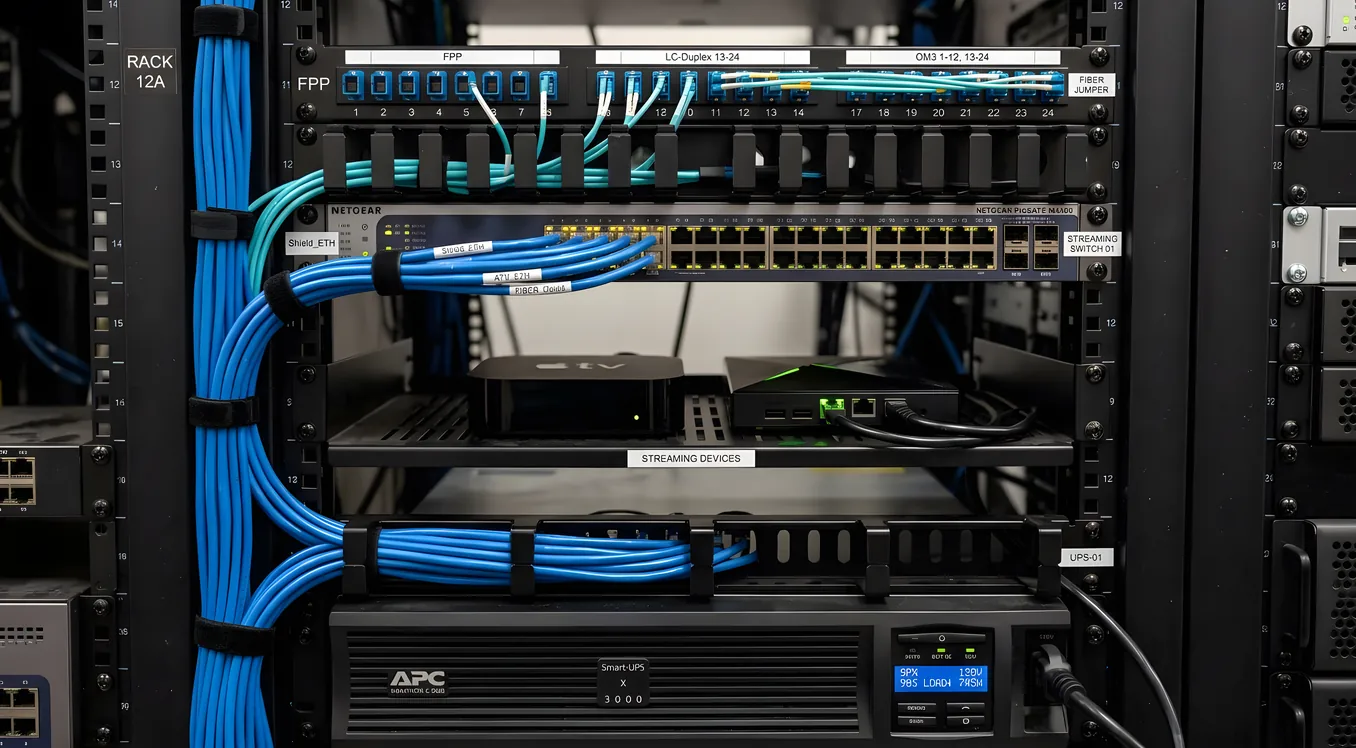
For homes starting from scratch, the investment order matters. Network infrastructure first, always. If the wall isn’t open, it won’t be for another ten years, so run Cat 6A home runs to every media location during any renovation or new construction. Equipment rack next: a 12U or 24U rack in a dedicated closet with proper ventilation and a UPS (APC Smart-UPS 1500VA, around $400) protecting everything from power events. Then sources, distribution hardware, and zone control, in that order.
For homes building on existing infrastructure, the honest assessment is that piecemeal upgrades have limits. Adding one more mesh access point or one more streaming stick doesn’t fix a fundamentally undersized network or a building wired with Cat 5. A professional integrator doing a site survey can tell you in two hours exactly what the limiting factors are and what it would cost to fix them versus work around them. That conversation, which most integrators will do for free or at low cost, is often more valuable than weeks of forum research.
For homes that are also evaluating whole-house audio systems alongside video distribution, the network and distribution infrastructure is largely shared, and planning both together typically saves 15 to 25 percent on installation costs versus treating them as separate projects. The equipment rack, the Ethernet home runs, the managed switches, and the control system serve both audio and video zones. That’s not a coincidence. It’s the reason professional integrators always start with a whole-home media architecture plan rather than scoping individual rooms in isolation.
The homes that get whole house streaming right are the ones that spent time on the part that doesn’t show up on a spec sheet: the architecture underneath everything else. Once that’s solid, the rest is just configuration.