Enterprise WiFi for Smart Homes: Why Consumer Routers Fail
Your $300 mesh router worked fine for two laptops and a phone. Then you added a Control4 system, 12 Lutron Caseta switches, a Sonos whole-home audio setup with 8 zones, four Nest thermostats, a Ring doorbell, six security cameras, and a handful of smart plugs. Now your automation is misfiring, your lights have a half-second lag, and your Sonos drops out every couple of days.
The hardware is not broken. The network is simply not designed for what you’re asking it to do.
This is the situation that sends homeowners down the rabbit hole of enterprise WiFi, and for good reason. Understanding why consumer routers fail, what enterprise systems actually offer, and what a proper residential deployment looks like will save you months of frustration and a lot of money spent chasing the wrong problems.
The Consumer Router Problem, Explained
Consumer routers are built around a specific use case: a handful of people in one location browsing, streaming, and gaming. The hardware is optimized for peak throughput, which is why router marketing obsesses over theoretical speeds like “WiFi 6E, 10.8 Gbps combined.” What those numbers don’t tell you is how the router behaves when 60 devices are connected simultaneously, most of them chatting constantly in the background.
Smart home devices are chatty. A Sonos speaker checks in with the network every few seconds. Nest thermostats send temperature data continuously. Ring cameras maintain persistent connections. Lutron and Control4 systems have their own polling intervals. Add up 50 to 100 devices doing this simultaneously, and the router’s client association table, its processing overhead for managing connections, and its radio management logic all come under sustained pressure that consumer hardware was not built to handle.
The specific failure modes are predictable:
Client density limits. Consumer access points are typically tested and rated for 20 to 30 simultaneous clients. The listed maximums (often 100+ in marketing copy) describe theoretical association, not stable performance. Once you push past 40 to 50 active clients on a single AP, you start seeing connection drops, devices cycling through DHCP renewals, and control latency that makes automation feel sluggish.
Roaming behavior. In a home with multiple consumer mesh nodes, devices decide when to switch from one node to another. The algorithms are designed for mobile phones that can tolerate a 200ms handoff pause. A Control4 processor, a Lutron hub, or a networked audio endpoint that gets dropped during a handoff may need several seconds to recover its connection, which in automation terms means a command that simply does not execute.
Radio management. Consumer access points do not manage their radios with the same granularity as enterprise gear. Transmit power, channel selection, and band steering happen automatically and often sub-optimally. Two neighboring mesh nodes might both gravitate to the same non-overlapping channel because that channel had less interference at installation time, even if conditions have changed significantly.
QoS limitations. Consumer routers can prioritize traffic categories broadly, but they lack the per-client and per-SSID granularity to guarantee that a Control4 command packet gets processed before background firmware update traffic from a smart bulb.
None of these problems mean your consumer router is defective. It is doing exactly what it was designed to do. The design just does not match your use case.
What Enterprise WiFi Actually Means for a Home
The term “enterprise WiFi” covers a spectrum. At the commercial end, you have Cisco Catalyst Wi-Fi 7 infrastructure running on six-figure networks. For residential use, the relevant manufacturers are Ubiquiti (UniFi line), Cisco Meraki (their Go and SMB lines), Ruckus, Aruba, and increasingly Eero Pro (owned by Amazon but with enterprise-leaning features). The platforms that integrators deploy most commonly in smart homes are Ubiquiti UniFi and, for higher-budget projects, Aruba or Ruckus.
What distinguishes these systems from consumer gear is not raw speed. It is the way they manage clients and radio environments.
Centralized controller management. Enterprise APs report to a central controller (Ubiquiti’s is a software package called UniFi Network, which can run on their own hardware appliances or as a cloud service). The controller sees every AP, every connected client, and every radio parameter in one place. When a device roams from the AP in the kitchen to the one in the living room, the controller facilitates that handoff using 802.11r fast BSS transition, reducing handoff time from 200-300ms on a typical consumer system to under 50ms. For automation control paths, that difference is the gap between “works reliably” and “occasionally misfires.”
SSID segmentation with proper VLAN assignment. A Ubiquiti UniFi controller can broadcast multiple SSIDs simultaneously, each mapped to a separate VLAN with its own firewall rules. In a practical smart home deployment, you might have a primary network for personal devices, an IoT network for cameras and smart plugs that cannot talk to the primary VLAN, and a dedicated network for your Control4 or Crestron system that gets QoS priority. This topology is essential for security and reliability. This connects directly to VLANs and IoT Network Segmentation: Securing Smart Devices, which goes deeper on why isolating your device types matters.
Band steering and airtime fairness. Enterprise APs steer clients to 5 GHz or 6 GHz bands when the device supports it, keeping the congested 2.4 GHz band cleaner for devices that require it (many Zigbee and older IoT devices). Airtime fairness prevents a single slow device from consuming a disproportionate share of shared radio time, which is a genuine problem when you have one device connecting at 54 Mbps (an older smart sensor) on the same AP as a 4K streaming TV.
Client isolation where needed. You can configure specific SSIDs so that devices on the same network segment cannot communicate with each other. This is relevant for guest networks and also for IoT device SSIDs where you want devices to reach the internet and your control hub but not be able to probe each other.
Sizing an Enterprise WiFi Deployment
The question homeowners ask most often is how many access points they need. The right answer depends on square footage, construction materials, and device density, but the general guideline for smart home installations is one AP per 1,500 to 2,000 square feet in standard wood-frame construction, with additional APs for areas with concrete or brick walls, basements, garages, and outdoor coverage zones.
For a 4,000 square foot two-story home with standard construction, three to four APs is a typical starting point. Add outdoor APs (like the Ubiquiti UniFi U6 Outdoor at around $179 each) for coverage of patios, driveways where Ring or Raleigh cameras are mounted, and detached structures.
A few specific reference points on hardware costs:
- Ubiquiti UniFi U6 Lite: Around $99 per unit. Good for smaller rooms, secondary coverage zones. Handles WiFi 6 with reasonable client density.
- Ubiquiti UniFi U6 Pro: Around $179 per unit. The workhorse for most residential deployments. Supports WiFi 6, 4x4 MU-MIMO, handles 300+ clients (practically reliable to 150+).
- Ubiquiti UniFi U6 Long Range: Around $179 per unit. Better for open-plan spaces or installations where you want to cover a large area from a single mount point.
- Aruba Instant On AP22: Around $149 per unit. A solid alternative with good SMB-grade management, slightly more turnkey than UniFi for homeowners who do not want deep configuration.
- Ruckus R550: Around $349 per unit. Higher price point, but Ruckus has consistently strong RF performance in dense environments and is a common choice for premium Crestron and Savant installations.
The controller hardware matters too. For UniFi, the UniFi Dream Machine Pro at around $379 handles routing, controller, security, and threat management in one unit. For larger deployments or when the integrator is managing a fleet of sites, the UniFi Dream Machine SE ($499) adds PoE ports and a higher-spec processor. These are not optional if you want centralized management: running the controller on a PC that gets rebooted or is powered by a UPS that is not protected is a common mistake that leads to orphaned APs and roaming failures.
Access Points Need to Be Wired
This is the point where many homeowners push back: “I thought enterprise mesh systems solve the need for wiring?” No. Enterprise mesh, or what Ubiquiti calls “wireless uplink,” is a fallback for situations where running cable is genuinely impossible, such as a historic property with walls that cannot be opened. It is not a design recommendation.
Each AP that is connected to the network via a wireless backhaul has its effective bandwidth cut roughly in half for client traffic, because half the radio time is used for the uplink to the next AP. More importantly, a wireless backhaul introduces latency and a potential failure point that a wired connection does not. In a smart home where you are running automation commands that should execute in under 100ms, adding a wireless hop is a problem.
Proper deployment means running Cat6 or Cat6A from a central wiring closet to each AP location. The APs then receive both power and data from a PoE switch over that single cable, which is exactly what Power over Ethernet in Smart Homes: Cameras, APs, and More covers in detail. This approach also gives you a clean physical infrastructure to work from. The Structured Wiring: The Backbone of Every Smart Home framework applies directly here: the wiring decisions you make before walls close become the ceiling on what your network can deliver for years afterward.
Planning AP Placement
AP placement in a smart home is not the same as in an office. In a corporate environment, you are trying to cover open floor plates with lots of people. In a smart home, you are covering irregular spaces with high-value devices that need solid connections, not necessarily the absolute highest throughput.
A few placement considerations that often get overlooked:
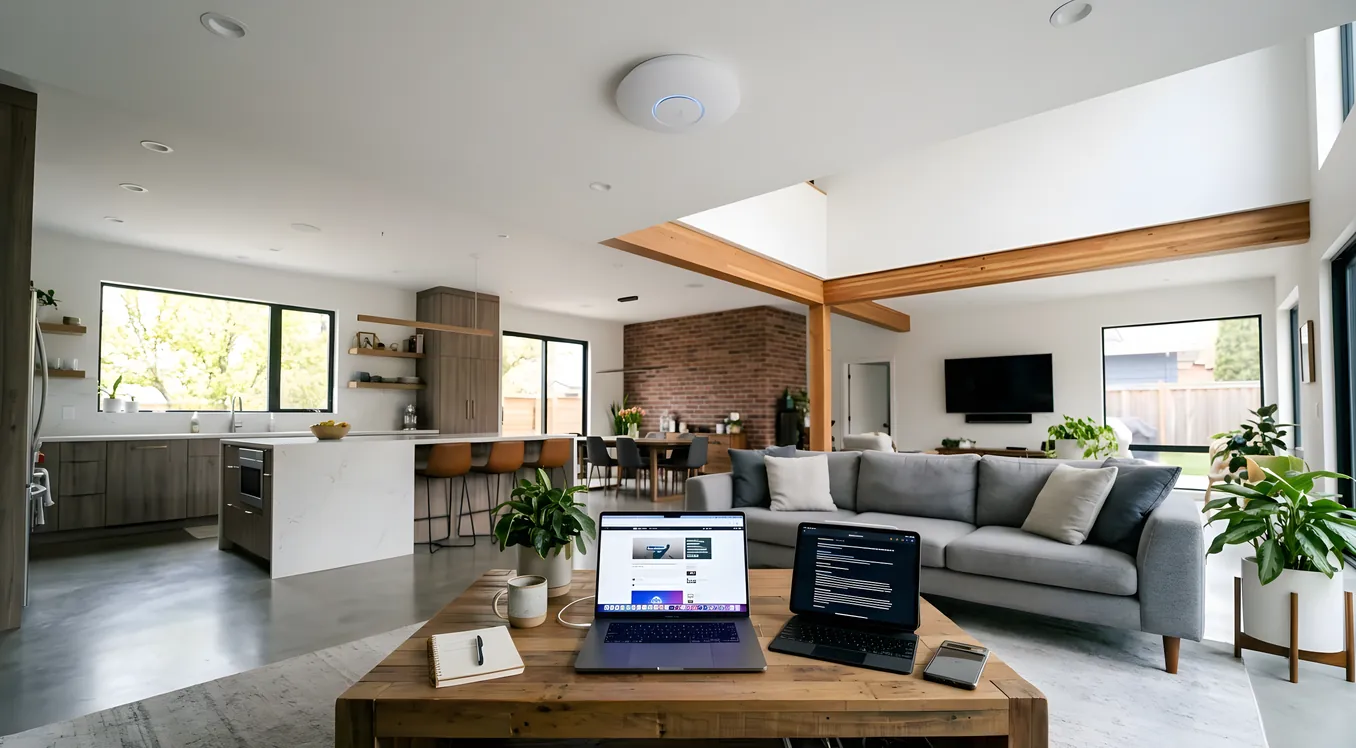
Ceiling versus wall mounting. Ceiling-mounted APs provide more uniform horizontal coverage, which suits open-plan layouts well. Wall-mounted APs (with the right antenna pattern) can cover corridors and rooms that a ceiling mount might leave with weaker signal at the edges. In two-story homes, an AP on the ceiling of the first floor and on the ceiling of the second floor each cover their respective levels better than trying to reach both floors from a single unit on a wall between them.
Proximity to RF interference. Consumer 2.4 GHz devices, microwave ovens, and concrete with embedded rebar all cause problems. APs should be positioned so that the bulk of your critical devices are within 30 to 40 feet with clear line of sight, not 60 feet through two walls.
Avoiding over-coverage. Adding more APs is not automatically better. Two APs with overlapping coverage that are configured on the same channel will interfere with each other. Enterprise systems handle channel planning automatically through a process called RRM (Radio Resource Management), but the controller needs enough separation between APs to make good decisions. The rule of thumb is 15 to 20% signal overlap between adjacent AP coverage areas, not 50 to 60% overlap.
The Control4, Crestron, and Savant Connection
If you are running a professionally installed automation system from Control4, Crestron, or Savant, your integrator has likely already specified a network infrastructure recommendation. For good reason: these platforms have specific requirements that consumer networking fails to meet consistently.
Control4 systems rely on network communication between the primary controller (usually a CA-10 or a Director running on an HC-800 or EA-series controller), touchscreens, driver-controlled devices, and the cloud for remote access. Any latency or dropped connection in those paths produces visible, user-facing failures. The same applies to Crestron’s SIMPL and SIMPL Windows control systems.
Integrators working with these platforms standardize on Ubiquiti UniFi or Pakedge (now a Snap One brand, which is also Control4’s parent company) for most residential installations. Pakedge equipment is designed explicitly for residential AV integration and includes a cloud management platform (Bakpak) that your integrator can access for remote diagnostics. Pakedge WR-1 routers run around $399, and the WA-23D access point (dual-band, 802.11ax) is around $329 per unit.
For Savant installations, which tend toward the higher end of the market, you will most commonly see Ruckus infrastructure specified. Ruckus units are more expensive but have a track record of reliable performance in very dense environments and in homes with challenging RF conditions (stone walls, large glass panels, open-plan layouts with lots of reflective surfaces).
What This Costs and What to Expect
For a typical 3,500 to 5,000 square foot home moving from consumer to enterprise WiFi:
- 4 to 6 enterprise APs (U6 Pro or equivalent): $700 to $1,100 in hardware
- Controller/router (UniFi Dream Machine Pro or similar): $350 to $500
- PoE switch for AP power (Ubiquiti USW-24-PoE at around $380): $350 to $450
- Labor for installation, configuration, and testing (integrator or IT contractor): $800 to $2,500 depending on complexity
Total installed cost typically ranges from $2,200 to $4,500 for a well-designed enterprise residential deployment. That is not a trivial expense, but it is a one-time infrastructure investment that will outlast two or three generations of consumer gear and that will not need to be replaced every time a new WiFi standard becomes relevant.
The comparison that matters is not “enterprise WiFi versus a $400 mesh kit.” It is “enterprise WiFi once versus replacing and reconfiguring consumer gear every 18 months while your $50,000 automation system underperforms.”
How Enterprise Systems Handle the Ongoing Management Question
One concern homeowners raise is ongoing management: who maintains this after installation? Consumer systems have apps. Enterprise systems have interfaces that are more capable but also more complex.
The answer depends on how the system is set up. If your integrator manages the network on a service contract, they handle firmware updates, configuration changes, and remote troubleshooting through the cloud controller interface. UniFi, Aruba Instant On, and Pakedge Bakpak all support this model. If you are self-managing, UniFi’s Network application has become genuinely approachable for homeowners over the past several years: most routine tasks (connecting a new device, changing a password, reviewing connected clients) are straightforward. The complexity only surfaces when you need to do things like reconfigure inter-VLAN routing or diagnose a channel conflict, and those situations are rare once the system is properly set up.
The Network Rack and Closet Design for Residential Systems article covers the physical infrastructure side of this, including how to organize a wiring closet so that the hardware is accessible and labeled correctly, which matters a lot when you (or a technician) need to troubleshoot at 2am because a guest cannot connect.
Making the Right Call for Your Situation
Not every smart home needs enterprise WiFi from day one. If you have 15 to 20 devices in a 1,500 square foot home and your primary automation is a few Philips Hue bulbs and a Nest thermostat, a solid consumer router with good firmware (ASUS with Merlin, or an Eero Pro 6E) will serve you fine for years.
The threshold where enterprise infrastructure starts making clear sense: more than 40 connected devices, a professionally installed automation platform (Control4, Crestron, Savant, Lutron RadioRA), multiple floors or a large footprint, or a history of connectivity problems that has already consumed significant time troubleshooting.
At that threshold, the investment pays for itself in reliability, and more importantly, in the peace of mind that your network is not the variable you are constantly chasing when something does not work. The automation becomes predictable. The lights turn on when you ask. The Sonos does not drop. The cameras stay connected.
That predictability is what you actually bought when you invested in a smart home system. The enterprise network is what makes it deliverable.