Network Rack and Closet Design for Residential Systems
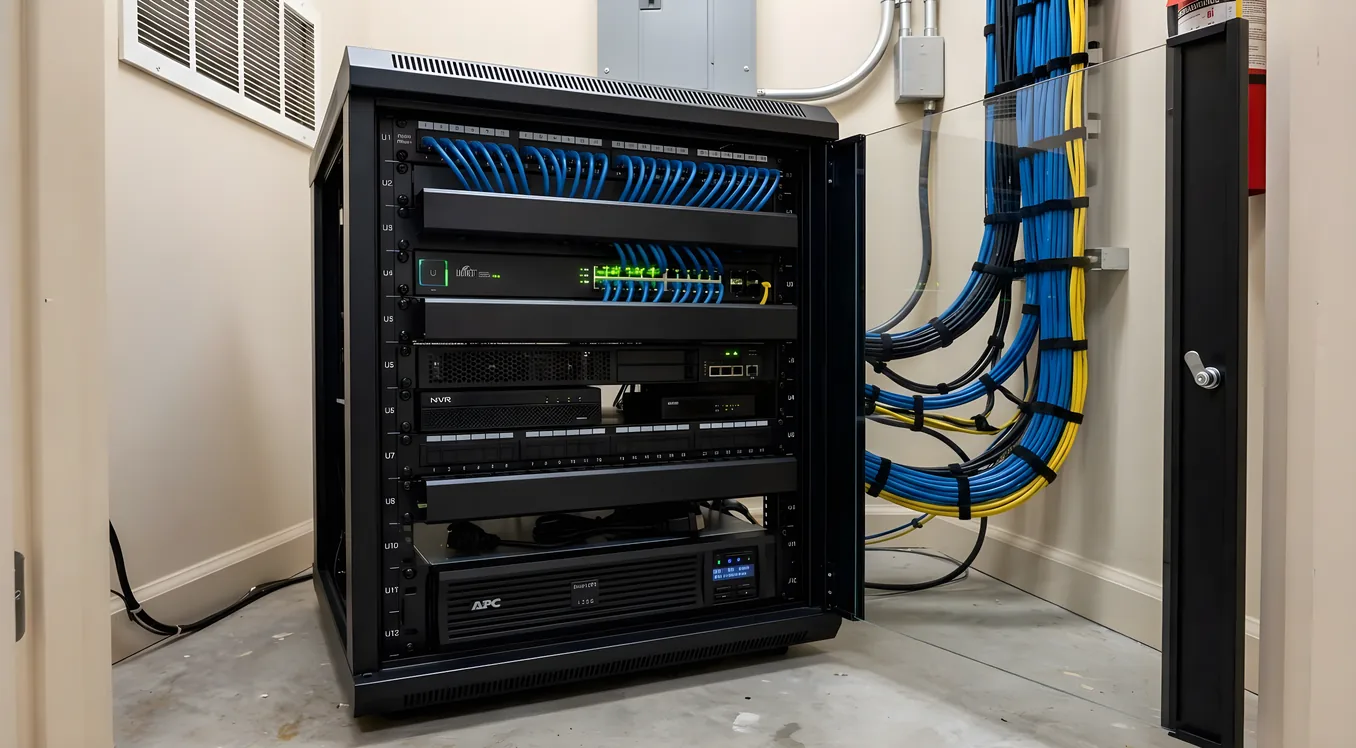
The network closet is the most consequential room in a modern smart home, and almost no one designs it intentionally. Most homes end up with a garage shelf, a spider web of patch cords, and an ISP modem zip-tied to a wire shelf that vibrates whenever the dryer runs. That setup was tolerable when the network served two laptops and a smart TV. It falls apart the moment you add a Control4 EA-3 controller, eight IP cameras, a 16-port PoE switch, a Lutron RadioRA 3 system, a Sonos Amp, and a Nest Learning Thermostat that expects a reliable cloud connection to function at all.
This is an article about doing it right the first time, or recovering from the accidental version before it causes real problems. We’ll cover rack sizing, cooling math, power conditioning, cable management, and the specific equipment decisions that matter most in a residential context. The goal is a structured media closet that a technician can work in, that your integrator can service, and that you can understand at a glance when something goes wrong at midnight on a Saturday.
Why a Proper Home Network Rack Actually Matters
Before getting into hardware, it helps to understand what’s at stake. In a smart home where lighting, HVAC, security, audio, and access control all depend on network connectivity, the network rack is a single point of failure for every system in the house. A failed switch takes out IP cameras and keypads simultaneously. An overheating router causes intermittent drops that show up as phantom failures across unrelated subsystems. A power surge without proper conditioning can brick a $1,200 Control4 controller.
The cost to fix poor initial design is high because it usually requires taking everything offline, re-running cables, and sometimes repatching an entire panel. The cost to do it correctly the first time is modest. A quality 12U wall-mount rack from Tripp Lite (model SRWF12U, approximately $180) plus a quality patch panel and some thought about airflow will outlast every piece of active equipment inside it.
For perspective on what’s connecting to this infrastructure: a modest smart home with enterprise wireless, smart lighting, a security system, and a few automation controllers will typically have 20 to 40 wired network endpoints. A larger home handled by an integrator doing Savant or Crestron work might have 80 to 120. Every one of those endpoints traces back to the rack.
Choosing the Right Rack Form Factor
Residential network racks come in three practical forms: wall-mount open frames, wall-mount enclosed cabinets, and floor-standing equipment racks. The right choice depends on the space available, the equipment being housed, and the thermal requirements of that equipment.
Wall-mount open frames (Tripp Lite SRWO12U, Legrand On-Q 19-inch series) are the default choice for structured media closets under 300 square feet. They mount flush to a wall stud, take up no floor space, and allow air to move freely around equipment. The tradeoff is that there’s no door, so everything is exposed. In a utility closet or dedicated telecom room, this is fine. In a living space, it’s less acceptable aesthetically.
Wall-mount enclosed cabinets (Middle Atlantic WMRK-12-18, Panduit SWN12U) add a vented door and often include side panels. Depth matters significantly here: most cabinets ship in 18-inch or 24-inch depths, and a 24-inch depth is the minimum if you’re housing equipment with rear-facing power supplies (most enterprise switches, UPS units, and media converters). A 1U rack unit equals 1.75 inches of vertical space. Measure your deepest piece of equipment before specifying a cabinet.
Floor-standing racks make sense when you have more than 24U of equipment, a dedicated equipment room, or a mix of AV and networking gear that needs to be co-housed. A home with a full Crestron NVX distribution system, a Savant music controller, and a full security NVR will legitimately need 42U of vertical space. Middle Atlantic’s RCO series (approximately $800 to $2,200 depending on size and features) is a common professional choice in residential AV installations.
For planning purposes, assume you’ll fill 70 to 80 percent of whatever size you specify within two to three years. Start larger than you think you need.
How Many Rack Units Do You Actually Need?
This is the question most homeowners can’t answer because they don’t have a complete device list when the house is being built. Work from this baseline and add to it based on your specific systems:
- ISP gateway or fiber ONT: 1U (often wall-mounted separately, but plan for it)
- Firewall or enterprise router (Ubiquiti UDM Pro, pfSense appliance): 1U to 2U
- Core managed switch (Ubiquiti UniFi USW-Pro-48, Cisco SG350-28P): 1U
- PoE switch for cameras and access points: 1U (or combine with core switch if budget allows)
- Patch panel, 24-port: 1U
- Patch panel, 48-port: 2U
- UPS (APC Smart-UPS 1500VA rack-mount): 2U
- Automation controller (Control4 EA-3 or EA-5): 1U per unit, sometimes 2U
- NVR for cameras (Hikvision DS-9600NI or Synology NAS): 1U to 2U
- Cable management (horizontal, between active gear): 1U per every 3 to 4 rows
- Blank panel fillers for airflow control: 2U reserved
A well-equipped single-family home with professional integration typically lands between 12U and 24U. A larger estate project or home theater with centralized AV distribution can run 36U to 48U. If you’re planning for future expansion and don’t know exactly what systems will be added, err toward the larger size.
The structured wiring planning process affects this directly because every cable run needs a home-run termination point, and the size of your patch panel is set during rough-in.
Airflow and Thermal Management
Heat kills network equipment. A 1U managed switch running at 75 percent capacity in a sealed cabinet with no active cooling will throttle or fail. In an enclosed residential rack, thermal management is not optional.
The physics are simple: hot air rises. Equipment should be mounted so that the coolest air enters from the bottom and exits from the top. Switches and routers, which generate the most heat, should sit at the top of the rack (or at least not be surrounded by other heat-generating equipment). UPS units, which are heat-tolerant but generate significant heat themselves, go at the bottom where their weight is best supported and their heat rises away from sensitive gear.
Active cooling options for residential enclosures:
-
Rack-mount cooling fan units (Middle Atlantic SECF-1U, approximately $90): A 1U panel with two to four 80mm fans that you can mount at the top or bottom of the rack. They move air continuously and are the minimum solution for any enclosed cabinet.
-
Thermostat-controlled fan trays: Same concept but with a temperature sensor that activates fans only when the cabinet reaches a set point (typically 75 to 85 degrees Fahrenheit). This reduces noise and wear. Tripp Lite’s SRCOOL12K and Middle Atlantic’s UWF series both offer this.
-
Mini-split or dedicated HVAC: In a large equipment room with a floor-standing rack, a dedicated mini-split unit is not uncommon in professional installations. A Mitsubishi MSZ-GL06NA (6,000 BTU, approximately $700 to $900 for equipment) provides reliable cooling without the humidity and filter issues of portable units.
Temperature to target inside the enclosure is 65 to 75 degrees Fahrenheit. If you don’t have a thermometer mounted in the rack, you’re guessing. A simple digital thermometer/hygrometer (Govee H5074, around $12) mounted on a 1U shelf gives you actual data.
Humidity matters too, particularly in basements or unconditioned spaces. Smart home equipment generally tolerates 20 to 80 percent relative humidity without degradation. Below 20 percent, static discharge risk increases. Above 80 percent, condensation becomes a problem. If the rack is in an unconditioned basement, a small dehumidifier in the same room is worth the investment.
Power Conditioning and UPS Sizing
Every piece of active equipment in a home network rack should be on a UPS. Not surge protection. Not a power strip with a “surge” label. A true uninterruptible power supply with battery backup. The reasons are multiple:
First, smart home controllers and automation systems do not behave gracefully on power loss. A Control4 director that loses power mid-database-write can corrupt the project file. Recovering from that requires a dealer-level restore. A properly sized UPS gives every device a clean shutdown.
Second, brief power fluctuations are far more common than complete outages. Brownouts, sags, and spikes happen multiple times per month in most residential areas. Quality UPS units regulate voltage actively (AVR, automatic voltage regulation) and prevent those fluctuations from reaching equipment.
Third, runtime during actual outages allows for planned shutdown or, in shorter outages, continued operation. Most residential systems need 15 to 30 minutes of runtime to handle a typical brief outage.
UPS sizing formula: Add up the wattage of everything in the rack (use the nameplate wattage, not the rated maximum). A Ubiquiti UDM Pro draws about 35W. A UniFi USW-Pro-48-PoE switch at half load draws around 130W. A Control4 EA-5 draws approximately 25W. A 16-port PoE injector powering 12 cameras at 12.5W each draws 150W. Add 20 to 30 percent headroom.
For most residential installations, a 1500VA to 2200VA rack-mount UPS provides adequate runtime. APC’s Smart-UPS 1500VA LCD (SRT1500RMXLA, approximately $550) is a reliable workhorse with network management card compatibility and runtime extension via external battery packs. CyberPower’s OL2200RTXL2U (approximately $700) is a similarly capable alternative. Avoid consumer-grade APC Back-UPS units in rack applications. They’re not designed for continuous operation in enclosed environments.
Cable Management: The Detail That Determines Whether Anyone Can Work In This Rack
Poor cable management is not a cosmetic problem. It’s a maintenance problem. When something fails, a technician needs to trace cables without disturbing anything else. In a rack with no management, pulling one cable disrupts five others and creates a half-hour troubleshooting detour that should have taken five minutes.
Horizontal cable managers (1U panels with D-ring guides or brush strips) should be installed between every two rows of active equipment, minimum. Middle Atlantic’s HRZ1U and Panduit’s WMPFSE are both common in professional installations. Budget $25 to $45 per unit and plan for one per every two rack units of active equipment.
Vertical cable managers on the sides of open-frame racks allow long patch runs to be bundled and routed without crossing the front face of equipment. For wall-mount racks, adhesive-backed D-rings on the wall beside the rack accomplish the same purpose.
Patch cord selection matters more than most homeowners realize. Buying the cheapest possible Cat6 patch cords from an unknown manufacturer is asking for intermittent failures that are nearly impossible to diagnose. Panduit and Belden both make pre-terminated patch cords with documented performance specs. In a 24-port patch panel with 24 structured cable connections, you’ll need 24 patch cords minimum. In a typical residential rack with upstream and downstream connections, budget for 40 to 60 patch cords in various lengths (1-foot, 2-foot, and 3-foot for equipment connections; 7-foot and 10-foot for panel-to-switch runs).
Color coding patch cords by function is not mandatory, but it’s worth doing if this rack will ever be touched by anyone other than you. A common convention: blue for data, yellow for management/out-of-band, red for security/NVR, green for VoIP, orange for guest/IoT VLAN connections. Whatever scheme you choose, label it on a small card inside the rack door or on a label affixed to the inside panel.
Speaking of labels: every cable should be labeled at both ends. Every port on the patch panel should be labeled with the room and jack number it serves. A P-Touch PT-E300 or Brady BMP21-PLUS label maker ($50 to $80) with the appropriate heat-shrink labels or flag labels pays for itself the first time you need to move a wire.
Location and Environmental Considerations
Where the rack lives matters as much as what’s in it. The ideal location for a home network rack is:
- Centrally located to minimize home-run cable lengths (the center of the house, or a utility room that allows cable runs in multiple directions without exceeding the Cat6 maximum of 328 feet / 100 meters per segment)
- Climate-controlled, ideally kept between 60 and 80 degrees Fahrenheit year-round
- Not in the garage (temperature swings, humidity, vibration from garage door openers)
- Not under a bathroom or laundry room without sealed ceiling protection (water risk)
- On its own dedicated 20-amp circuit, or ideally two (one for UPS/networking, one for AV equipment)
Basements are acceptable with a dehumidifier and moisture monitoring. A Govee WiFi Hygrometer connected to the same network will alert you if humidity spikes. Structured media closets built specifically for AV/networking equipment are increasingly common in new construction and are worth requesting specifically if you’re building or doing a major renovation.
Conduit to the rack location is worth installing at rough-in even if you don’t plan to use it immediately. A 2-inch EMT conduit from the rack location to the attic (or crawlspace on single-story homes) allows future cable additions without drywall work. The cost difference at rough-in is trivial. The cost later is significant. This is one of the arguments for reading up on structured wiring planning before the walls close.
Network Segmentation Hardware in the Rack
A smart home with IoT devices introduces security requirements that a single flat network can’t address. Cameras, smart locks, voice assistants, and environmental sensors all communicate on the network. Some of them have firmware update schedules measured in years (or never). Keeping them isolated from your primary network requires VLANs, which require a managed switch and a router capable of inter-VLAN routing.
In the rack, this means:
- A managed switch at layer 2 (Ubiquiti UniFi USW-Pro-24, Cisco SG350-28P, or equivalent)
- A router at layer 3 capable of VLAN routing and firewall rules (Ubiquiti UDM Pro, pfSense on a Protectli appliance)
- Wireless access points that support multiple SSIDs mapped to VLANs
The switch and router typically take 2U combined in the rack. Access points themselves are ceiling-mounted throughout the house, but their PoE power comes through the switch in the rack. If you’re wondering whether enterprise access points are worth the cost over consumer mesh systems, that question is answered directly in terms of VLAN support, centralized management, and reliability expectations in high-device environments.
The IoT VLAN setup process explains the specific firewall rules and VLAN configurations that work in a Ubiquiti environment. From a rack perspective, the key point is that your managed switch needs to be spec’d for the number of VLANs you plan to run and the PoE budget required by all devices drawing power from it.
Power-over-Ethernet Planning for the Rack
PoE devices, including access points, IP cameras, door controllers, and VoIP handsets, all receive power through the network switch rather than from dedicated power supplies at each device. This is one of the most significant practical advantages in a well-designed system: fewer wall warts, cleaner installation, and centralized power management.
The tradeoff is that PoE power comes from the switch’s PoE budget, which is a hard limit. A Ubiquiti UniFi USW-Pro-24-PoE provides 400W of PoE budget across all ports. A Cisco SG350-28P provides 375W. An access point like the Ubiquiti U6 Pro draws 13W. A Hikvision DS-2CD2347G2-LU IP camera draws roughly 8W. A 12-camera, 6-access-point installation would draw approximately 174W from the switch, leaving budget headroom for future expansion.
Where PoE budget runs short, mid-span PoE injectors (individual or multi-port) can supplement the switch’s budget for specific devices. A TP-Link TL-PoE150S single-port injector ($20) is a reasonable solution for a single device that needs more power than a port can deliver. For larger deployments, a dedicated PoE switch or PoE expansion module is the cleaner option. The full PoE device planning guide goes deeper on budget calculations and injector vs. switch tradeoffs.
What a Professional Build Actually Looks Like
An integrator-installed residential rack for a 3,500-square-foot home with full smart home integration typically breaks down like this:
- 24U wall-mount enclosed cabinet with fan tray: $800 to $1,200
- Ubiquiti UDM Pro (router/controller): $379
- Ubiquiti USW-Pro-24-PoE (core switch): $599
- 48-port patch panel (Leviton GigaMax or Panduit NetKey): $120 to $220
- APC Smart-UPS 1500VA rack-mount: $550 to $650
- Horizontal cable managers (8 units): $200 to $360
- Patch cords (50 units, mixed lengths): $150 to $250
- Control4 EA-3 controller: $1,050 (integrator pricing, typically)
- Label maker and labels: $80
- Rack installation labor: $400 to $800 depending on complexity
Total rack infrastructure cost: approximately $4,300 to $5,600 before automation equipment and cameras. This is not a trivial budget line, but it’s also a one-time infrastructure cost that supports every system in the house for 10 to 15 years if quality hardware is chosen.
DIY installations can cut labor and some equipment costs significantly. The Ubiquiti UniFi ecosystem, in particular, is well-supported with documentation and community resources, and homeowners with networking backgrounds frequently self-install. The areas where professional involvement tends to matter most are low-voltage cable termination quality (which affects network performance throughout the house) and the physical rack build itself, where correct airflow and cable management take experience to execute well the first time.
Building a Rack That Actually Gets Used
The best home network rack is one that makes future work easier rather than harder. That means labeling everything before the rack goes live, not after. It means leaving 20 percent empty for the devices you don’t know you’ll be adding yet. It means a mounted network diagram showing which patch panel port connects to which room and jack, so anyone can work in the rack without a full briefing.
Treat the rack as documentation. When the ISP swaps out the fiber ONT, or when you’re adding a second SSID for IoT devices, or when the camera system needs a firmware update, the time you spent on clean organization pays back immediately. A well-built home network rack is infrastructure that disappears into the background of a working smart home. A poorly built one becomes the source of every unexplained problem for as long as it exists.