Bandwidth Planning: How Many Devices Can Your Network Handle
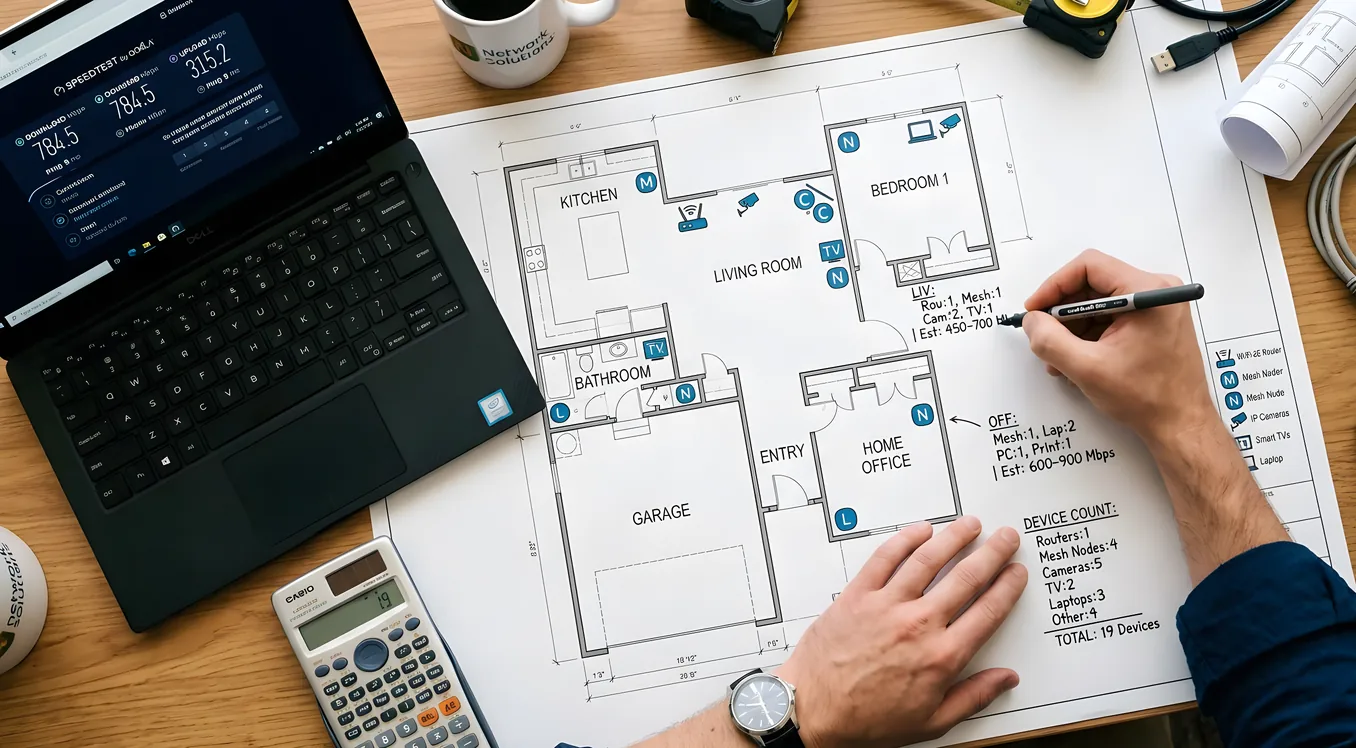
Your internet plan says 500 Mbps. Your integrator says that should be plenty. Then you add a second Sonos Arc, six IP cameras, two ecobee thermostats, and a Control4 EA-3, and suddenly your video calls are choppy and your automation scenes have a quarter-second lag that makes guests think your expensive system is broken.
The problem is almost never the raw number on your ISP plan. It is how that bandwidth gets consumed, managed, and shared across dozens of devices that all have their own traffic patterns, their own peak moments, and their own background chatter that never shows up in a simple speed test.
Smart home bandwidth planning is less about picking the right ISP tier and more about understanding what your specific device mix actually demands, where the real bottlenecks form, and how your network infrastructure distributes (or fails to distribute) capacity where it needs to go.
Why Smart Home Traffic Behaves Differently
A conventional household generates traffic in bursts. Someone starts a Netflix stream, a file downloads, a video call connects. In between those events, the connection sits mostly idle. Network infrastructure is designed around this burstiness.
Smart home devices break that pattern. They generate a continuous background floor of traffic that never fully stops, even at 3 a.m. when the family is asleep.
A Ring Video Doorbell Pro 2 maintains a persistent connection to Ring’s cloud infrastructure so it can respond to motion alerts in under a second. A Nest Learning Thermostat pushes and pulls data on a polling cycle measured in seconds. Lutron RadioRA 3 dimmers exchange status packets with the Lutron bridge on a cadence fast enough to support instant scene response. A Sonos Port in your equipment rack checks in with Sonos infrastructure and listens for commands from the controller app continuously.
None of these transactions are large. A thermostat status packet might be 200 bytes. The cumulative effect of 80 devices doing this simultaneously creates a sustained traffic floor that occupies real bandwidth and, more importantly, real processing capacity on your router and access points.
Then the peaks happen. Your spouse walks in the front door, triggering the Ring doorbell to send a push notification and spin up a live video stream. The same motion triggers a Control4 event that activates four Lutron scenes, changes the Sonos zone input, and sends a status update to the Control4 app on your phone. All of this happens in under 500 milliseconds, and all of it is competing for network resources with whatever else was already running.
Understanding these two layers, the continuous background floor and the event-driven spikes, is the foundation of sensible bandwidth planning.
The Device Count That Actually Matters
The question homeowners ask is: “How many devices can my network handle?” The more useful question is: “What does my network need to do for each of those devices, and when?”
Here is a practical per-device bandwidth reference for common smart home hardware. These are real-world steady-state numbers, not theoretical maximums:
Security cameras: This is almost always the biggest single driver of bandwidth in a smart home. A 4K camera running H.265 compression at medium quality settings will consume 8 to 12 Mbps for local recording and another 4 to 8 Mbps if it is simultaneously streaming to a cloud service like Google Nest Cam (powered), Arlo Ultra 2, or Reolink RLK-8 system. A 1080p camera running H.264 is 4 to 6 Mbps locally. If you have eight 4K cameras uploading to the cloud, that alone is 32 to 64 Mbps of sustained upstream bandwidth.
Streaming devices: An Apple TV 4K streaming a 4K Dolby Vision title from Apple TV+ uses approximately 15 to 20 Mbps. Netflix 4K peaks around 25 Mbps. A Sonos Arc or Beam Gen 2 streaming music uses less than 1 Mbps, but it maintains its connection constantly. Four people in different rooms streaming 4K simultaneously is 80 to 100 Mbps of downstream traffic, and that number is non-negotiable.
Smart speakers and audio: A Sonos Roam, Era 100, or Era 300 streaming Tidal Masters (MQA) at the highest quality setting uses 3 to 4 Mbps. A whole-home Sonos setup with 10 zones all playing simultaneously (a dinner party scenario) is 30 to 40 Mbps from audio alone. Amazon Echo Studio streams at a lower bitrate than Sonos but still maintains a persistent connection for wake-word detection.
Smart displays and tablets: An Amazon Echo Show 15 running video calls over Alexa Together uses 3 to 5 Mbps per call. A wall-mounted iPad running the Control4 or Crestron app uses minimal bandwidth at idle but spikes during AV switching events.
Automation controllers: A Control4 EA-1, EA-3, or CA-10 uses very little bandwidth for its own control traffic, typically under 1 Mbps aggregate. The same is true for Crestron CP4-N, Savant Pro Host, and Lutron HomeWorks QSX processors. These devices are efficient because their traffic is mostly local or small-packet cloud check-ins. They are not bandwidth consumers, but they are connection count contributors, and they can generate short-duration spikes when processing large scene changes.
IoT devices: A Z-Wave or Zigbee smart plug does not use your IP network directly and contributes no WiFi bandwidth. A WiFi-connected smart plug (like TP-Link Kasa EP25 or SONOFF S31) uses roughly 0.1 Mbps at steady state. The bandwidth is negligible; the connection count is not.
Sizing Your ISP Plan
Take your device list and apply actual expected usage, not theoretical maximums. A realistic sizing exercise for a 4,500 square foot home with a full smart home deployment might look like this:
Eight 4K IP cameras uploading to cloud storage: 48 Mbps upstream. Three simultaneous 4K streams (Netflix, Hulu, YouTube TV): 75 Mbps downstream. Four Sonos zones playing simultaneously: 16 Mbps downstream. Two video calls (Zoom, FaceTime): 10 Mbps up/down. Background device traffic, automation controllers, smart home hubs: 8 Mbps aggregate. Total simultaneous peak: approximately 150 Mbps downstream, 60 Mbps upstream.
With that profile, a 500 Mbps symmetrical fiber plan has enough headroom. A 200 Mbps down/20 Mbps up DOCSIS plan does not, particularly on the upstream side. The upstream shortfall is where most homeowners get into trouble, because ISP marketing focuses on download speed and the camera-to-cloud upload demand is invisible until you are actually living with it.
General guidance: for homes with more than 50 connected devices and four or more security cameras uploading to the cloud, a minimum of 500 Mbps downstream and 100 Mbps upstream prevents the most common congestion problems. Fiber (symmetric gigabit from providers like AT&T Fiber, Frontier Fiber, or local municipal providers) eliminates the upstream bottleneck entirely and is worth the modest premium in areas where it is available.
For homes with 100 or more devices, multi-camera NVR systems, and regular 4K video conferencing, a gigabit plan is not overkill; it is appropriate sizing.
Where Bottlenecks Actually Form
The ISP plan is only one layer. Many homeowners who upgraded to gigabit service still experience sluggish automation because the real bottleneck is not the pipe coming into the house; it is the hardware distributing traffic inside it.
The router processor. A consumer router like the Eero Pro 6E or Netgear Orbi RBK863S processes every packet that flows through it. At 50 simultaneous connections, this is well within the design envelope. At 150 connections doing constant background polling, some consumer routers begin to show elevated CPU utilization that affects latency for all traffic. This is why enterprise WiFi systems designed for smart homes matter: Ubiquiti UniFi, Cisco Meraki, and Ruckus equipment are built to handle 200 to 500 simultaneous client associations without degrading packet processing speed.
Switching capacity. If your home has a structured cabling infrastructure, your network switch handles all the wired device traffic. A cheap 8-port unmanaged switch rated for 1 Gbps per port can create a bottleneck when multiple devices connected to it are simultaneously generating high traffic. A managed switch like the UniFi USW-24-PoE or Netgear M4250 series allows you to assign priority to specific ports, so your Control4 processor and NVR always get preference over background traffic from smart plugs and sensors. Structured wiring built into your home from the start makes this kind of managed switching dramatically easier to implement.
WiFi client density. A single access point, even a capable one like the Ubiquiti U6-Pro or Ruckus R750, serves a limited number of clients before performance degrades. The practical limit for a smart home environment, where devices maintain persistent connections and cannot be assumed to disconnect cleanly, is roughly 40 to 60 active associations per radio. A 4,000 square foot home with 80 WiFi devices needs at minimum three to four well-placed access points, not one powerful router in the equipment closet.
Channel contention. Your neighbor’s WiFi network is using the same radio spectrum. In a dense suburban environment, the 2.4 GHz band is often extremely congested. Smart home devices that only support 2.4 GHz (many older Zigbee-paired sensors, Ring gen 1 devices, and budget smart plugs) all compete for the same crowded spectrum. Moving your IoT devices onto a dedicated 2.4 GHz SSID isolated from your main network helps manage this, and is also a security best practice. Separating networks by device type with VLAN segmentation for IoT security prevents a compromised smart bulb from having access to your laptop and NAS.
Wired vs. Wireless: What Should Run on Ethernet
Bandwidth planning and device management both get dramatically easier when you reduce WiFi dependency for high-demand devices. The rule of thumb: if a device is stationary and handles high-bandwidth or latency-sensitive traffic, run Ethernet to it.
Priority wired connections in a smart home:
Network video recorders (NVRs) running 8 to 16 camera feeds should never run over WiFi. An 8-camera Hikvision DS-7608NI-K2/8P or Reolink RLK16-800B8 system is generating sustained local traffic that saturates WiFi radios unnecessarily. Wired connection to your switch eliminates this load entirely.
Streaming players benefit significantly from wired connections. An Apple TV 4K wired to a switch will never encounter the 2.4/5 GHz band-steering decisions that occasionally cause consumer mesh routers to downgrade a device mid-stream. An HDMI matrix switcher with IP control (Crestron DM NVX, ZeeVee ZvPro series) runs far more reliably over Ethernet.
Network rack infrastructure including your UniFi Cloud Gateway, UniFi Dream Machine Pro, or Cisco Meraki MX series firewall should obviously be wired, as should every switch and access point in the system. Access points powered by Power over Ethernet eliminate the separate power adapter and simplify installation substantially.
Automation controllers: Control4 EA-series processors, Crestron CP4-N, and Savant Pro Hosts perform better on wired connections because the control traffic, while small, is latency-sensitive. A command that has to survive a WiFi handoff between two mesh nodes before being processed may take 200ms longer than the same command arriving over Ethernet. In a system where scene response is a selling point, that 200ms is noticeable.
Planning for Growth
The average smart home system doubles in device count within three years of initial installation. Homeowners add devices incrementally, and each addition seems minor until the aggregate effect becomes visible.
Size your infrastructure for 1.5x to 2x your current device count. If you have 60 devices today, specify a network that performs well at 120. This means buying a switch with more ports than you currently need (a 24-port managed switch instead of an 8-port), deploying one more access point than your current floor plan requires, and selecting a router or gateway with sufficient processor headroom for growth.
Network rack and closet design done at rough-in determines how easy expansion becomes later. A properly specified rack with 2U of blank panel space, a UPS sized to power 130% of current load, and cable management that does not require full disassembly to add a switch port is the difference between a 30-minute upgrade and a full-day rebuild.
For the ISP plan, do not lock in a tier that is already near your peak. If you are currently using 300 Mbps of a 400 Mbps plan, an upgrade to gigabit before you need it is far cheaper than dealing with congestion for six months while you wait for a service change appointment.
A Bandwidth Audit You Can Run Today
Before you call your ISP or order new networking equipment, spend 20 minutes gathering real numbers.
Log into your router’s admin interface (192.168.1.1 or similar, or the app for your mesh system) and look for connected device counts and per-device traffic stats. Most modern routers, including Eero, Ubiquiti, and Google WiFi, show real-time bandwidth usage per device. Look for devices consuming more than 5 Mbps at steady state that you did not expect. A firmware update running in the background on an NVR or a forgotten security camera with aggressive cloud upload settings will show up clearly.
Check your upstream utilization specifically. On most ISP modems, there is a status page showing current upstream and downstream utilization as a percentage of your plan speed. If your upstream is running above 60 to 70 percent at typical household activity hours, you are a candidate for plan upgrade or camera cloud-upload optimization (reducing resolution, limiting upload hours, or switching to local-only recording).
Count your WiFi clients. The list should not be a surprise, but it often is. Homeowners frequently discover 20 to 30 more WiFi devices than they remembered adding. Every device you find on that list that could reasonably run on Ethernet is a candidate for a wired connection that reduces WiFi congestion.
Practical Bandwidth That Holds Up Over Time
The homeowners who never have network problems in a complex smart home system share a few characteristics. They sized their ISP plan with upstream bandwidth in mind, not just download speed. They deployed managed network hardware with enough client capacity for their device count plus growth. They kept high-bandwidth stationary devices on Ethernet. And they planned their networking infrastructure from the start rather than retrofitting consumer gear onto a system it was never designed for.
The numbers are not complicated. Add up your device categories, apply realistic per-device bandwidth estimates, identify your peak simultaneous scenario, and size both your ISP plan and your internal hardware with a comfortable margin above that number. A gigabit fiber plan, a proper managed switch, and enterprise-grade access points cost roughly $200 to $400 more than a consumer alternative at initial installation. They save months of troubleshooting and avoid the credibility problem of an expensive smart home system that behaves unreliably.
Do the math before the equipment goes in. The foundation determines everything that runs on top of it.